

Mirasim Documentation
Members and collaboration
Add people to a cloud host or an attached computer, see who is doing what, and talk next to the sessions.
Who can use a machine
Everything in this chapter applies to any machine other people can reach: a cloud host, or your own computer attached to the cloud (chapter 12). Each one has its own list of people, and each person on it has one of three roles.
| Role | Who | Can |
|---|---|---|
| Owner | Whoever holds the machine: who created the cloud host, or whose computer it is | Everything. Only the owner appoints or removes admins. Cannot be demoted or removed, and cannot leave. |
| Admin | Appointed by the owner | Also updates the machine, installs and updates agents, configures models, adds and removes members. |
| Member | Everyone else on the list | Uses everything on the machine — workspaces, sessions, terminals. Cannot change credentials, models, agents or machine settings. Can leave. |
Adding people
- Open the members list
The Members button at the top right of the machine's window, or machine menu › Manage… › Members….
- Enter their email
They do not need a Mirasim account yet. Someone who has one is added straight away; anyone else gets an invitation email and joins automatically the first time they sign in with that address. Only the owner can invite someone as an admin.
- They find it in their machine menu
Signed in, the machine shows up in their machine menu marked “shared with you”, and opens in its own window like any other.
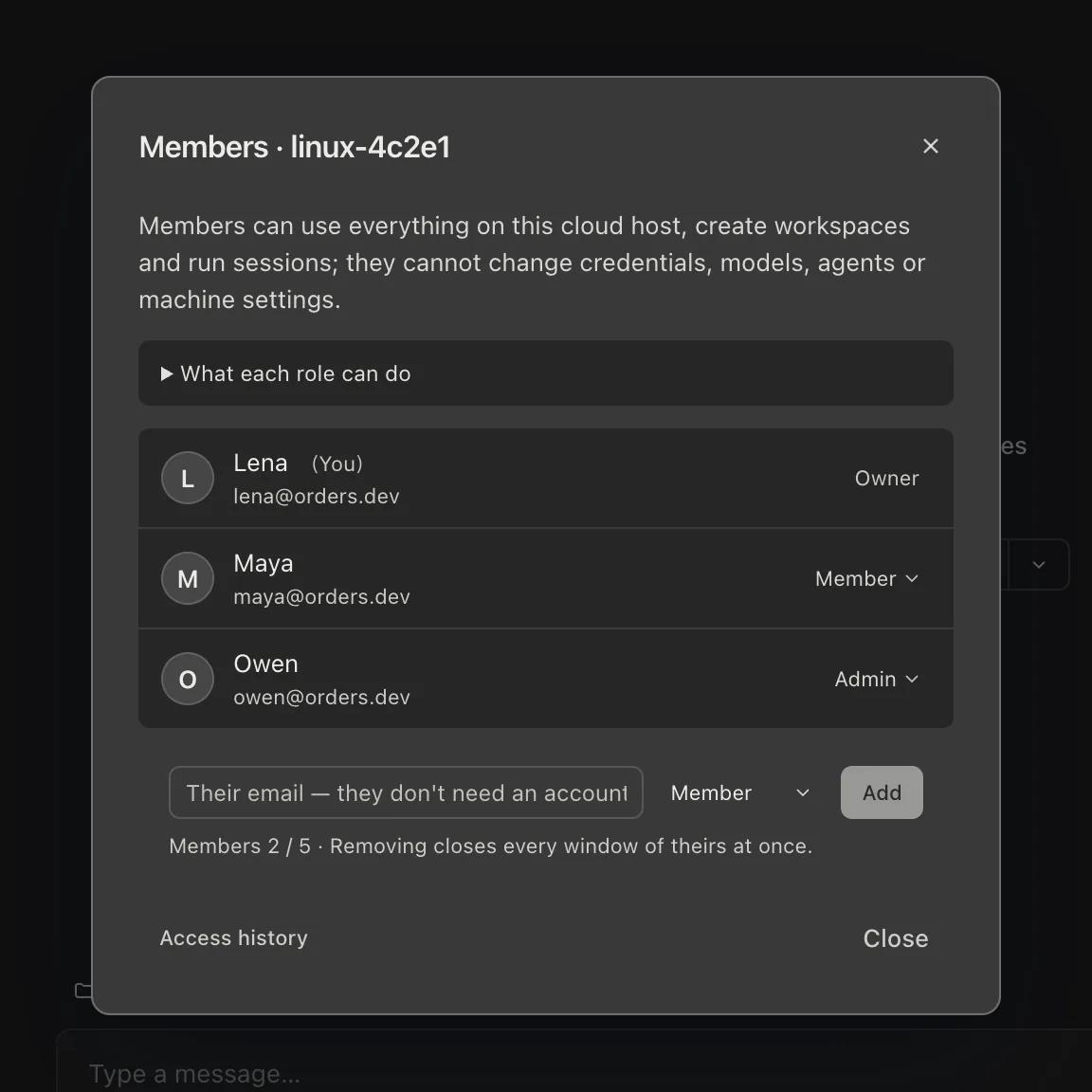
- Up to 5 people share a host, and invitations nobody has accepted yet take a place too. Pending invitations are listed with their expiry, and can be withdrawn.
- Changing someone's role reaches their open windows within 15 seconds.
- Removing someone disconnects every window of theirs at once; they cannot come back unless added again. A member can also leave on their own: “Leave this machine”.
- Access history records who added, promoted, demoted or removed whom — from the moment the current owner got the machine.
Who is here, and what they are doing
- The avatars at the top right are the people online, you included, most recently active first. A small dot means they have a turn running; a dimmed face means they stepped away.
- Hover a face for a one-line name and what they are doing; click it for their card: device, last activity, the sessions they are running or looking at.
- “See what everyone is doing”, at the top of the members list, draws who is running or viewing which session right now.
Sharing sessions
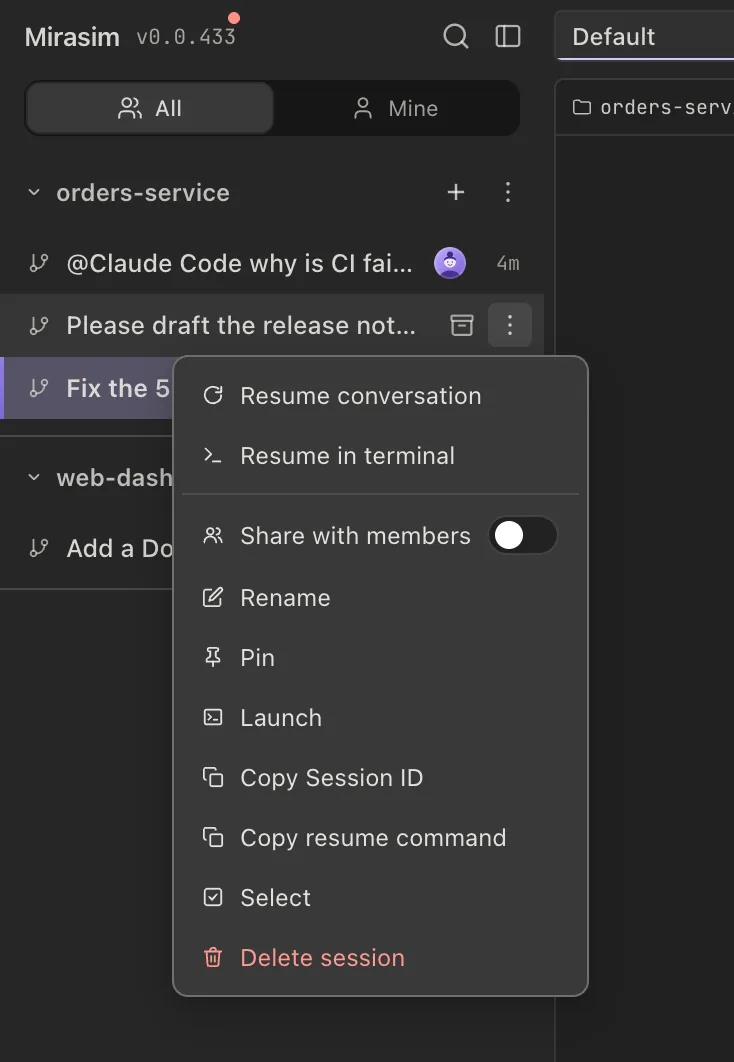
Every prompt a person sends is signed. In a session several people have written in, each of their messages carries the sender's name and avatar, and the session's row in the sidebar shows the faces of whoever asked in it.
- Private by default
- You can read anyone's session, but only its creator can send in it. To carry on yourself, use “Fork for me”; or ask the creator to turn on “Share with members” in the session's ⋯ menu, after which everyone can send there.
- One turn at a time
- While someone's turn is running, others can watch and send once it ends. The owner can stop another person's turn, after confirming.
- All / Mine
- A switch at the top of the session list. “Mine” keeps the sessions you created or have written in.
- Notifications
- On the phone, notifications that a session finished or is waiting for an answer are only for turns you sent.
Collaborate: channels, DMs and threads
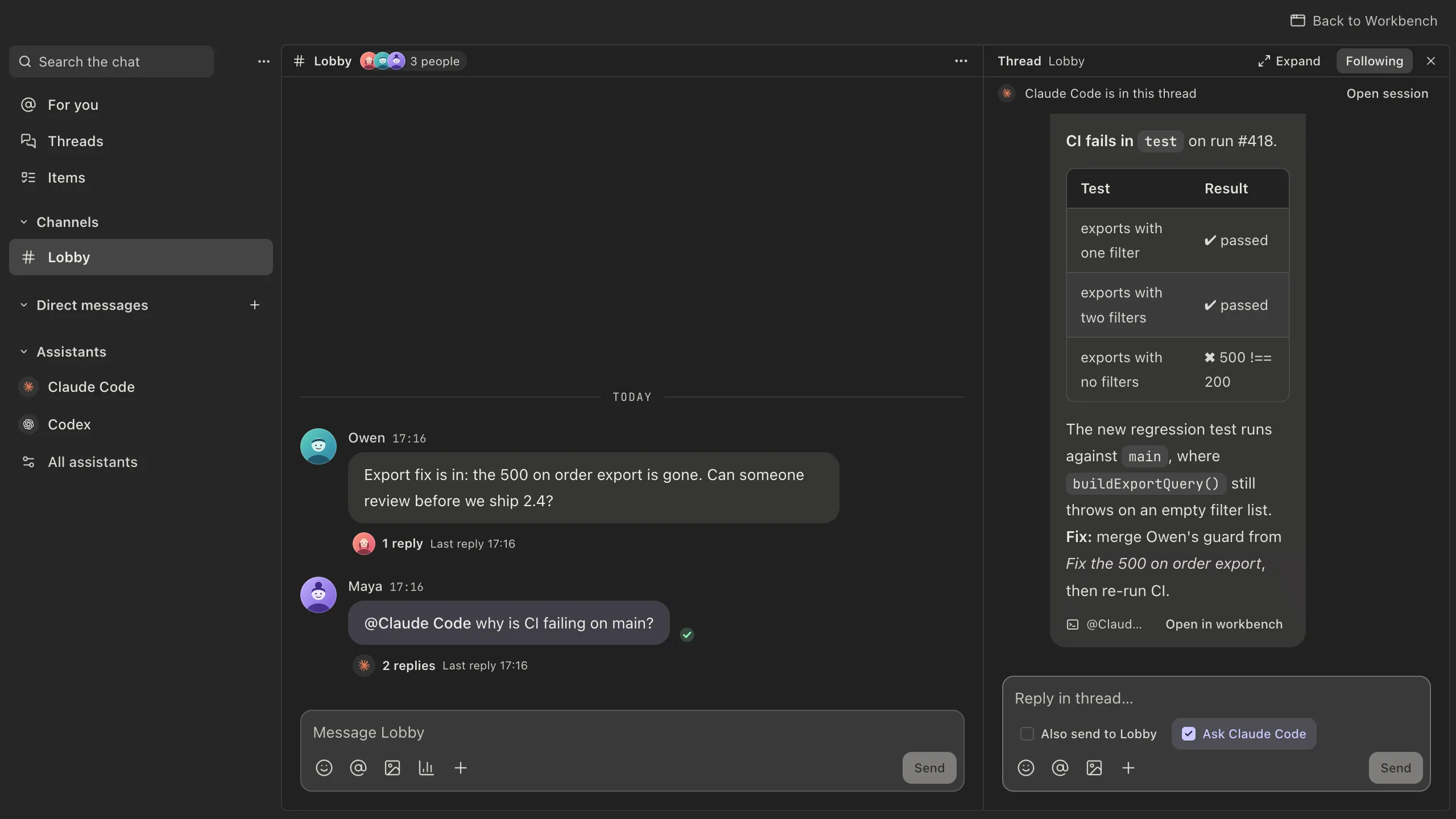
Every shared machine has its own team chat, opened from Collaborate in the top bar. It docks on the right of the window, or opens in a window of its own (“Open in window”) to sit beside the workbench or on another screen. The messages are stored on that machine, so its agents can read them, and when the machine is offline its chat is too.
- Channels
- Every machine starts with the Lobby. Only the owner and admins create channels and change their members.
- Direct messages
- One to one.
- Session comments
- One room per session, holding the comments on its turns — see the next section.
- Threads
- “Reply in thread” keeps a side discussion off the main flow. Follow a thread and its new replies land in For you; when it is done, right-click it (long-press on the phone) and “Wrap up thread” — it stays readable and can still be replied to.
- For you
- @-mentions of you, replies to you, followed threads and keyword hits. @everyone and @here reach the whole room or whoever is online.
- Your own settings
- Per-room notifications (all messages, only @ and replies, or muted), Do not disturb with a daily schedule, keyword alerts, and exporting the chat history.
Assistants
@-mention an assistant in a chat and it starts a session on that machine to do the work; the result comes back into the thread. An assistant is an agent with a name, a model, a default workspace and a chosen set of skills and MCP servers — the owner and admins create them under Manage assistants. When an assistant needs an answer, only the person who called it can give one.
Between the chat and the sessions
- Comment on a turn: hover a turn in a session and choose Comment; @ someone to pull them in. “Hand to agent” sends the comment into the session as a turn from you; “Resolve” closes it.
- Share to chat…: post a session, or one of its turns, into a room as a card others can open.
- Send to session…: from a message's ⋯ menu, hand the message to a session as its next turn.
- Items: the team's list of things to do, under the Items tab in Collaborate. Write one directly, or pick several out of a long answer with “Add as items…”. An item can have an owner or wait to be claimed, be handed to someone with a handoff note, or go to an assistant with “Start a session”.
On the phone
Sign in to the phone app with the same account and your cloud hosts are listed under Cloud. Connected to one, the phone has the same chat, the same members sheet — admins can promote, demote and remove people from it — and notifications only for your own turns.
Something wrong or missing on this page? Tell us