Mirasim Documentation
Organizations
One account for your company: it owns the team spaces, shares one seat pool and one credit pool, and pays in one place.
What an organization is
An organization owns team spaces in place of a single person. Everyone joins with their own account, and one person can be in several organizations. Creating one is free; you pay when the organization first buys space slots. Organizations are managed on the website: sign in at mirasim.ai, open “My spaces”, and switch to the organization in the menu at the top left.
| Role | Can |
|---|---|
| Owner | Everything, including transferring and deleting the organization. |
| Admin | Invites and removes members, manages every space in the organization, buys, and changes settings and domains. |
| Billing admin | Buys, sees billing and usage, edits company details, and gives credits from the pool to spaces. Cannot create or manage spaces. |
| Member | Sees the spaces they are in and, unless the organization turns it off, creates spaces from its slots. |
Inside a space, people keep the space roles from chapter 11: admin, collaborator and observer. A member of the organization can be the admin of a space.
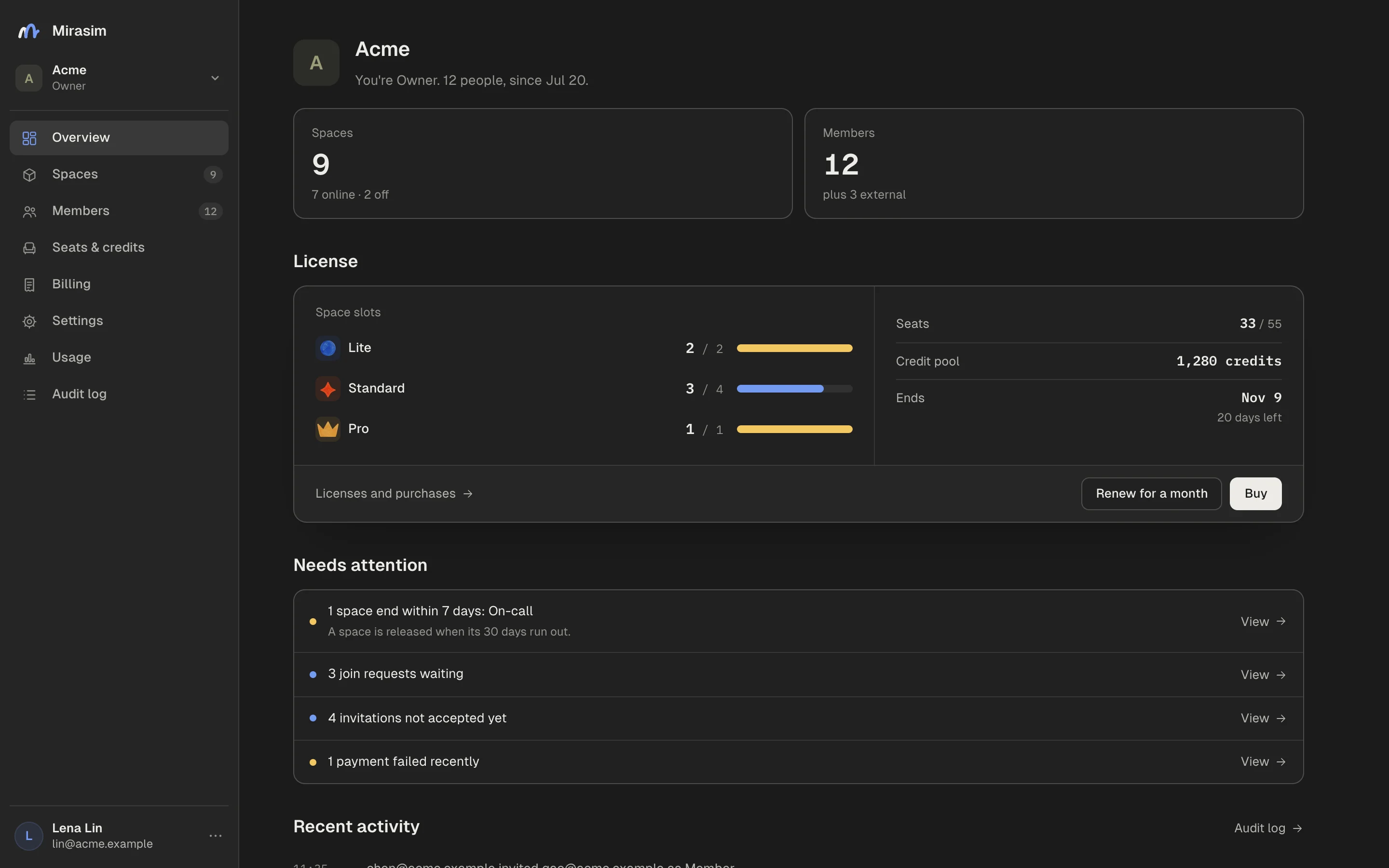
Creating or joining one
- Open “Create organization”
In the menu at the top left of “My spaces”, or from “Create an organization yourself” on the Pricing page.
- Name and address
Give it a name and an address (mirasim.ai/org/<address>: 3–40 lowercase letters, digits and hyphens), then click “Create organization”. You become its owner.
- Invite members
Paste email addresses, pick an organization role and click “Send invitation”, or “Skip”.
- Move in your spaces
Tick team spaces you own and click “Move in”, then “Go to the organization”.
To join by invitation, open the link in the email, sign in with the address it was sent to, and click “Accept and join”. If the invitation names spaces, you are added to them too. Invitation links work for 14 days.
Once an organization has verified its email domain, people who sign in with that domain see it under “My spaces” and can “Join” or “Ask to join”, depending on its settings.
The organization's spaces
An organization gets spaces in two ways: create one from a space slot, or move in a team space you own. “Spaces” lists every space it owns; members see only the ones they are in.
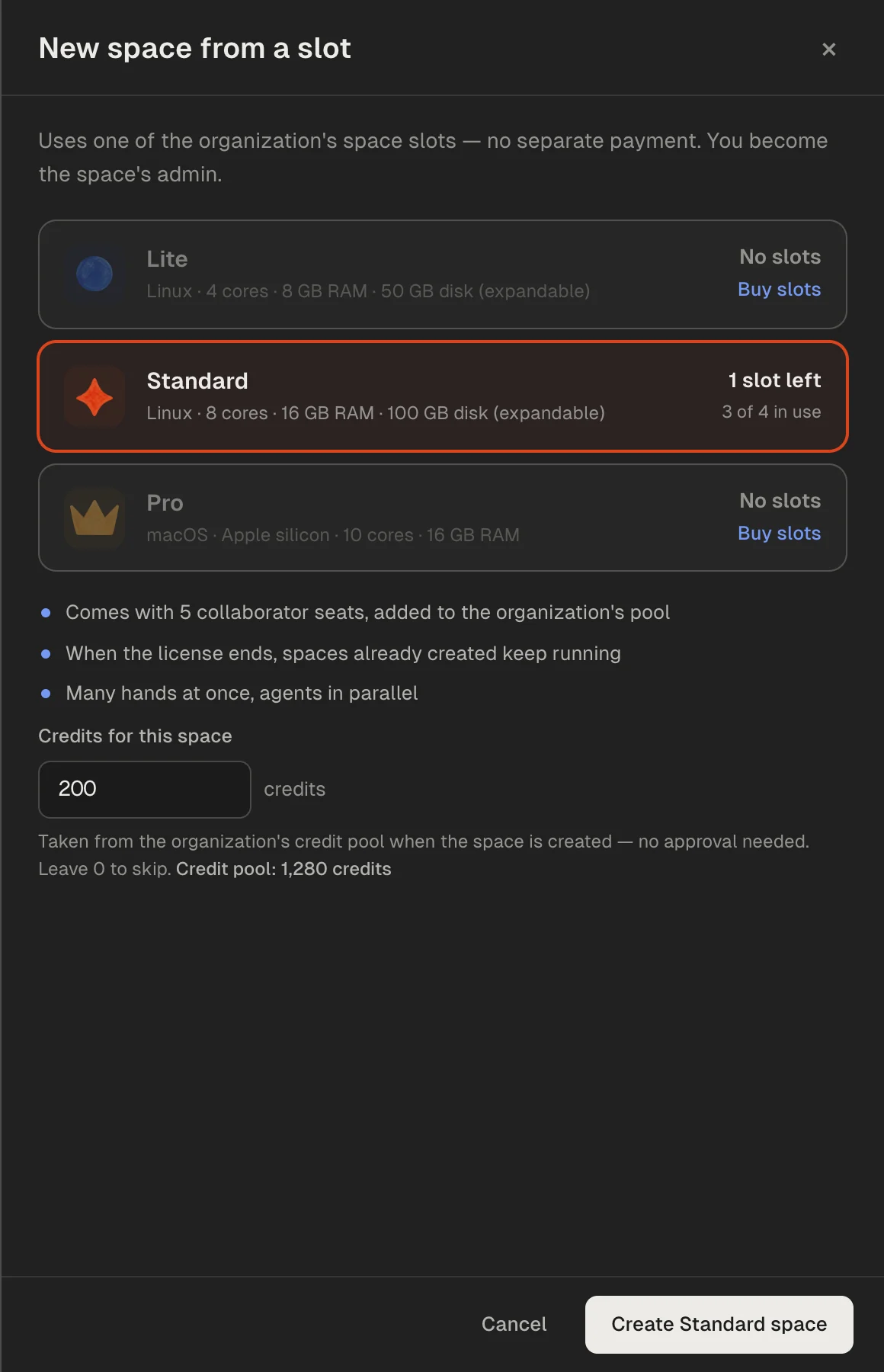
- Click “New space”
At the top right of “Spaces”.
- Pick a tier
Lite, Standard or Pro, each showing how many slots are left.
- Ask for credits if it needs them
Under “Credits for this space”, the amount moves from the organization's credit pool to the new space when it is created. No approval; up to 10,000 credits; 0 asks for none.
- Create it
You become the space's admin, and it opens in your browser.
- A slot costs nothing more at creation. Each space brings 5 collaborator seats into the organization's seat pool.
- Spaces created from slots have no end date. When the organization's slots expire it cannot create more, and the spaces it has keep running.
- If the credit pool holds less than you asked for, the space is not created.
“Move in my space” has two parts. A team space you own becomes the organization's: you stay on as its admin, its seats join the organization's pool, its old invite links stop working, and it cannot be moved back out yet. A computer you attached to the cloud (chapter 12) can be linked with “Link to organization”: it stays yours, the organization manages its members and seats, and the link ends when you leave the organization.
The “⋯” menu at the end of a row has “Manage members” (change space roles, add people, remove them). Owners and admins also get “Enter as admin”, which adds them to any space in the organization without taking a seat; it is written to the audit log and the people in the space are told. “Close the space” releases it at once and clears what is on it; it cannot be undone.
In the app, organization spaces are grouped under the organization's name in the space list, and “Manage on the website” in the space's settings opens that space in the organization's pages.
Members
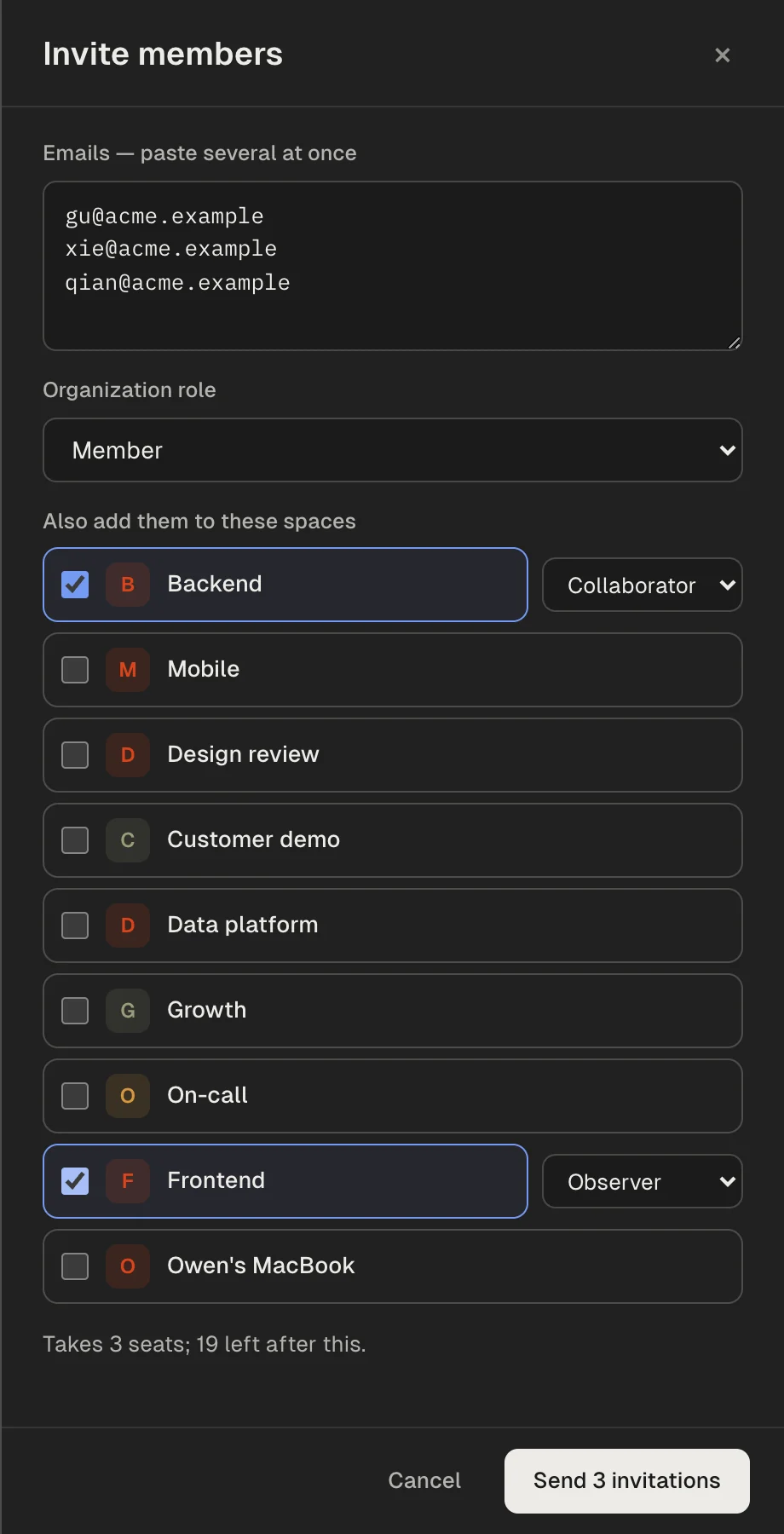
- Click “Invite”
At the top right of “Members”.
- Paste email addresses
Up to 50 at a time.
- Pick the “Organization role”
Member, admin or billing admin.
- Optionally, “Also add them to these spaces”
With a space role for each. The drawer shows how many seats this takes.
- Click “Send invitation”
Each invitation comes with a link that works for 14 days. If the email does not arrive, copy the link and send it yourself.
- “External collaborators”: people in the organization's spaces who are not members of it. They take seats unless they are only observers.
- “Pending invitations”: copy the link or revoke it.
- “Join requests”: people from a verified domain asking to join. Approve or decline.
- “Remove from organization” also removes the person from every organization space, and their seat goes back to the pool.
Seats and credits
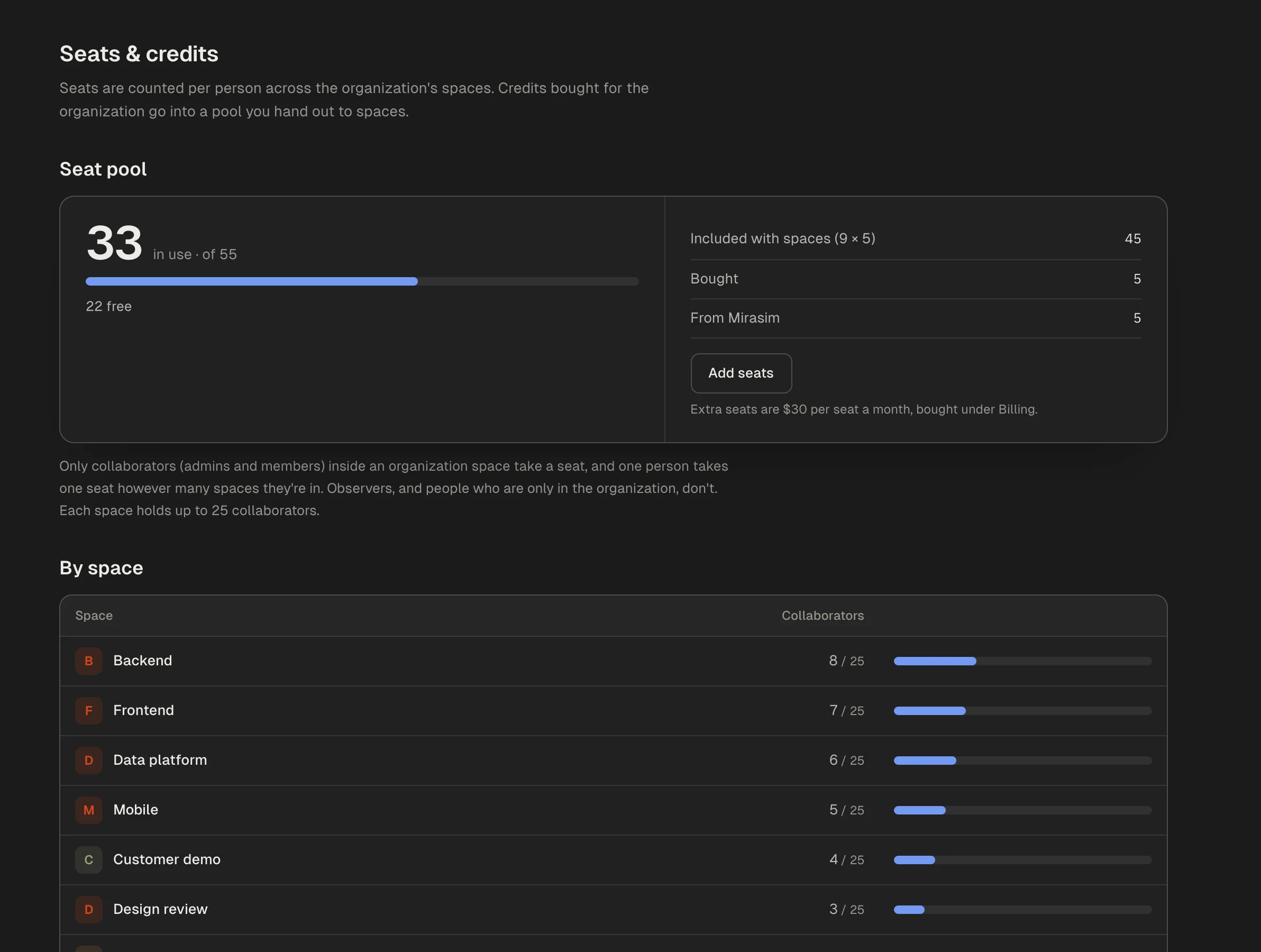
- The seat pool is 5 seats for each organization space, plus extra seats bought and any the platform gives. It covers every space.
- Only admins and collaborators of an organization space take a seat, and a person in several spaces takes one.
- Observers, members who are in no space, and people who used “Enter as admin” take none. External collaborators take one.
- A space holds up to 25 collaborators.
Credits the organization buys, including the credits that come with space slots, go into its credit pool and stay there when slots expire. In “Seats & credits”, the owner or a billing admin picks a space, enters an amount and clicks “Give”. A “Monthly budget” gives a space a fixed amount on the 1st of every month (UTC).
Buying and renewing
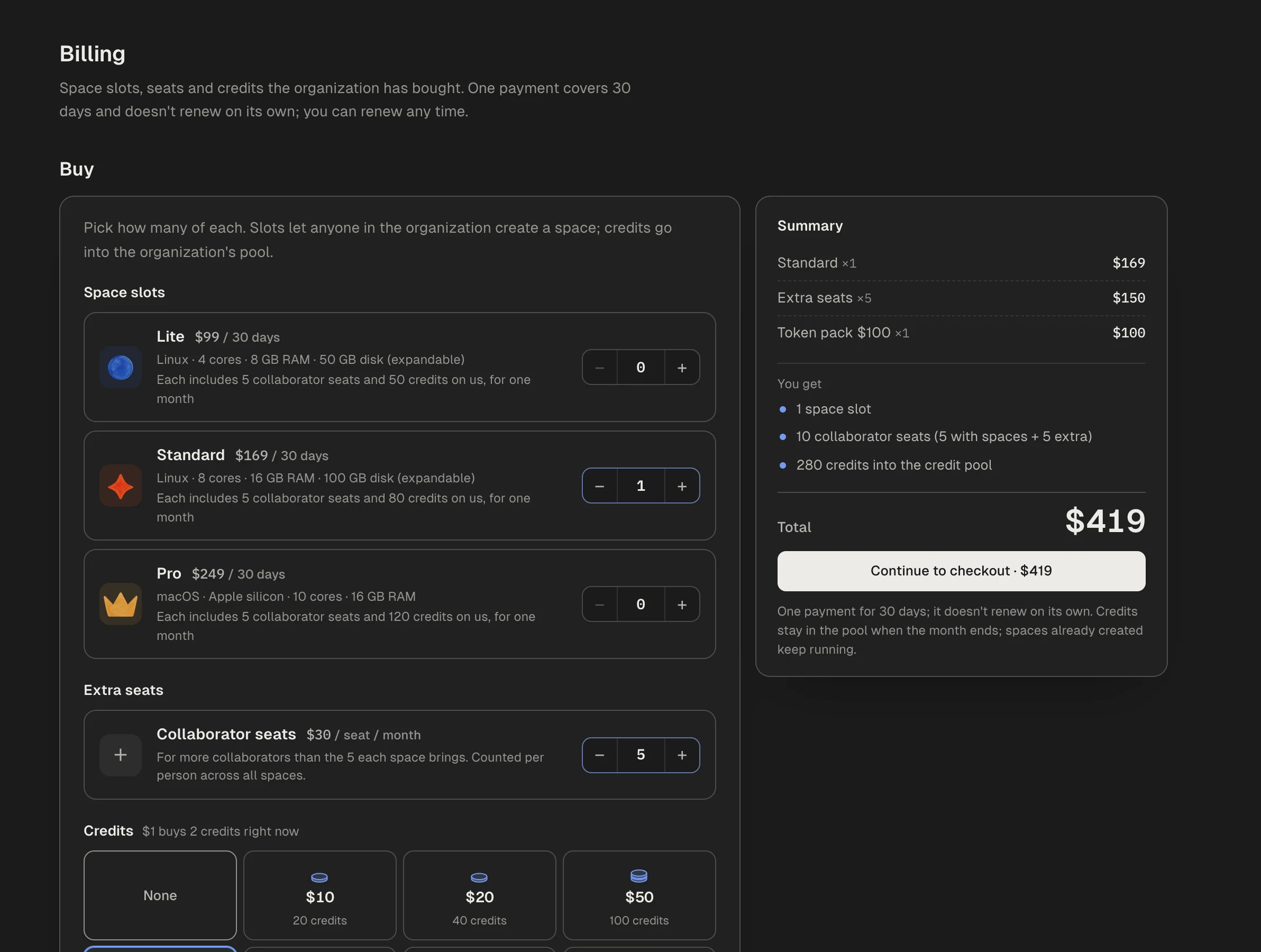
Owners, admins and billing admins buy in “Billing”. Each payment covers 30 days and does not renew by itself.
| Item | Price | Each one gives |
|---|---|---|
| Lite space slot | $99 / 30 days | 1 slot, 5 collaborator seats, 50 credits on us |
| Standard space slot | $169 / 30 days | 1 slot, 5 collaborator seats, 80 credits on us |
| Pro space slot | $249 / 30 days | 1 slot, 5 collaborator seats, 120 credits on us |
| Extra seat | $30 per seat a month | One person across all of the organization's spaces |
| Credit pack | From $10 | $1 buys 2 credits right now, into the credit pool |
- Set the quantities
Slots per tier, extra seats and a credit pack. The total on the right lists what the organization gets.
- Continue to checkout
Checkout opens in a new tab.
- Company details, the first time
Owners and billing admins are asked for “Company details”, shown on orders and receipts. It can be skipped.
- Start using it
When the payment page says it is active, everyone allowed to can create spaces from the new slots.
The overview warns you 7 days before the slots expire. “Renew for a month” buys the same slots and seats again, starting where the current ones end; credit packs are not bought again. Slots the platform gave you cannot be renewed. If you let them expire, existing spaces keep running, you cannot create new ones from slots, and the credit pool stays.
For a contract, a purchase order or one invoice for the company, use “Contact sales” under Enterprise on the Pricing page.
Settings, usage and audit log
- Basics
- Name, address and picture. Changing the address breaks links to the old one at once.
- Policy
- “Who can create spaces from slots” (all members by default, or owners and admins), whether people outside the organization may join its spaces, and the default agent and model for new sessions.
- Domains
- Add your company's domain, add the TXT record shown to your DNS, and click “Check now”. Then choose what happens to people who sign in with it: “Join automatically as members”, “Can ask to join” or “Nothing happens”. Public email domains such as gmail.com cannot be used.
- Transfer and delete
- Owner only. “Transfer ownership” to an existing member makes you an admin. To “Delete the organization”, close all its spaces first; orders are kept and it cannot be undone.
- Usage
- Owners, admins and billing admins. What the organization's spaces spent from their space credit since joining the organization, by space, member or model. “Export CSV”.
- Audit log
- Owners and admins. Invitations, role changes, payments, settings changes, space membership changes and “Enter as admin”, newest first, with filters and “Export CSV”.
Something wrong or missing on this page? Tell us