

Mirasim Documentation
Attach your own computer
Put your Mac or PC on your machine list, reach it from your other devices, share it with people you trust, and optionally its desktop.
Three kinds of machine
“Add machine” offers three sources. They differ in where you can reach them from and whether other people can join.
| Source | What it is | Reachable | Members |
|---|---|---|---|
| Cloud host | A machine we host for you; it runs even when this computer is off (chapter 10) | Any device, any time | Can invite |
| Your own computer | Your Mac or PC, on your list so you can reach it from elsewhere | Any device, while the computer is on | Can invite |
| SSH server | A Linux or macOS server you manage yourself (chapter 18) | Only from this computer | Cannot invite |
Attach to cloud
- On the computer you want to reach
Sign in to Mirasim, then machine menu › Remote access… and turn on “Attach to cloud”.
- Read the confirmation
It says three things: you can reach this computer from your other devices; members you share it with act as your current system user; it shows as offline while the computer sleeps or Mirasim is closed.
- Reach it from anywhere
On another computer or the phone, signed in to the same account, it is in the machine list as “My computer” and opens in its own window.
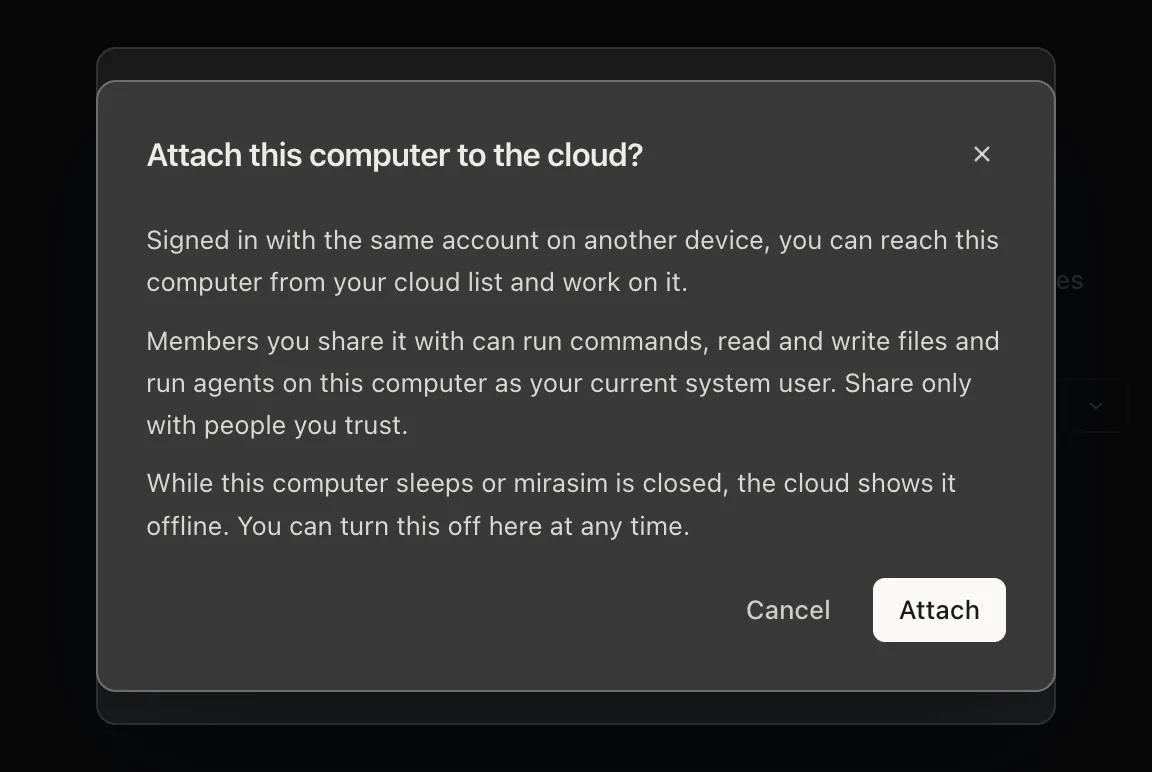
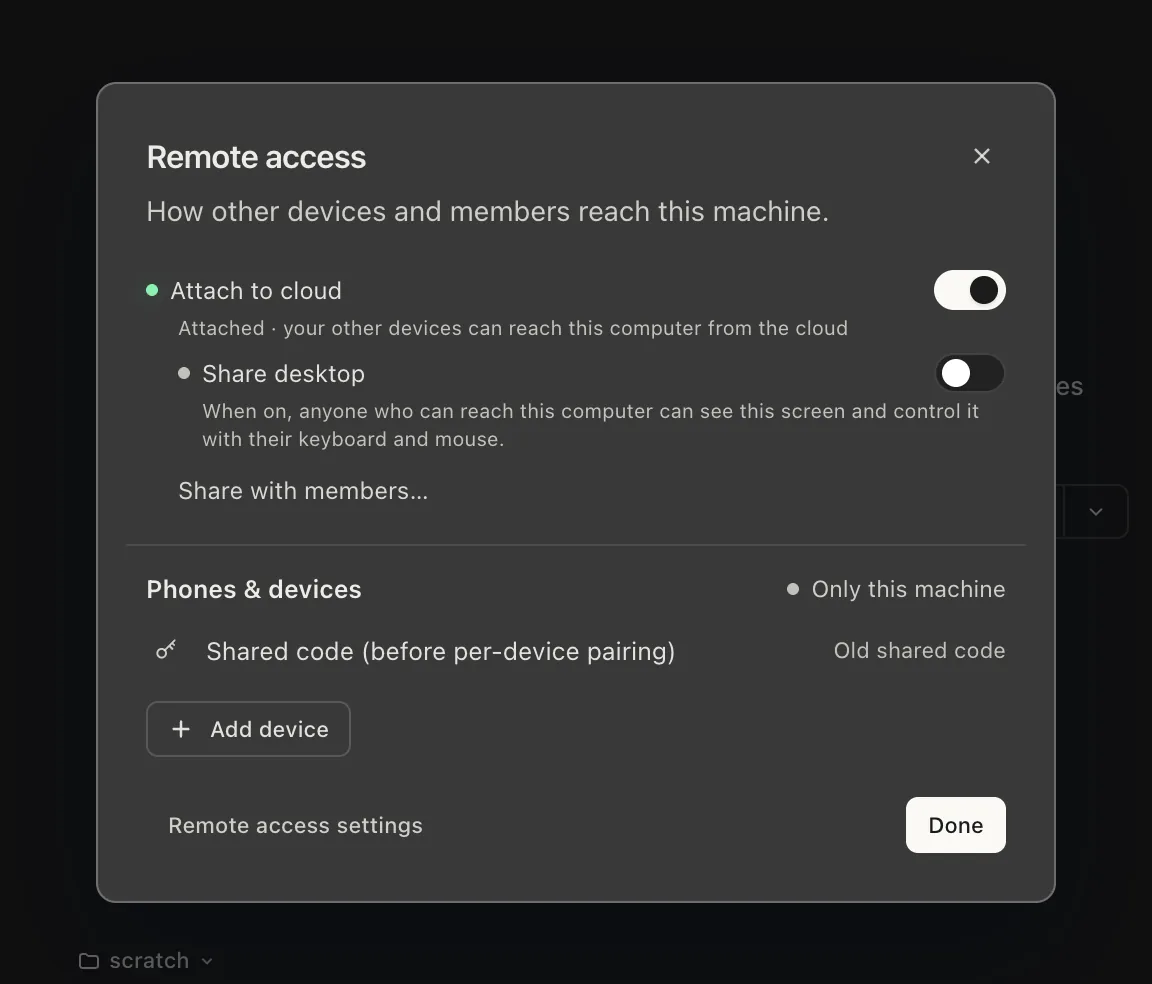
Turn the switch off at any time and the computer leaves the cloud list. On a computer that will not attach, the switch says why: not signed in, the account's limit of attached computers reached, or attaching not enabled for the account.
Sharing the desktop (macOS)
Under “Attach to cloud” is a second switch, “Share desktop”. With it on, anyone who can reach this computer can see its screen through Remote desktop in the machine menu, and control it with their keyboard and mouse.
- Turn on Share desktop and confirm
They will see whatever is on the screen — your windows, chats and notifications included.
- Grant Screen Recording
So they can see the screen.
- Grant Accessibility
So their keyboard and mouse work. Without it they can only watch.
Nothing is shared until both permissions are on, and the page says so while it waits.
Removing a computer from the list
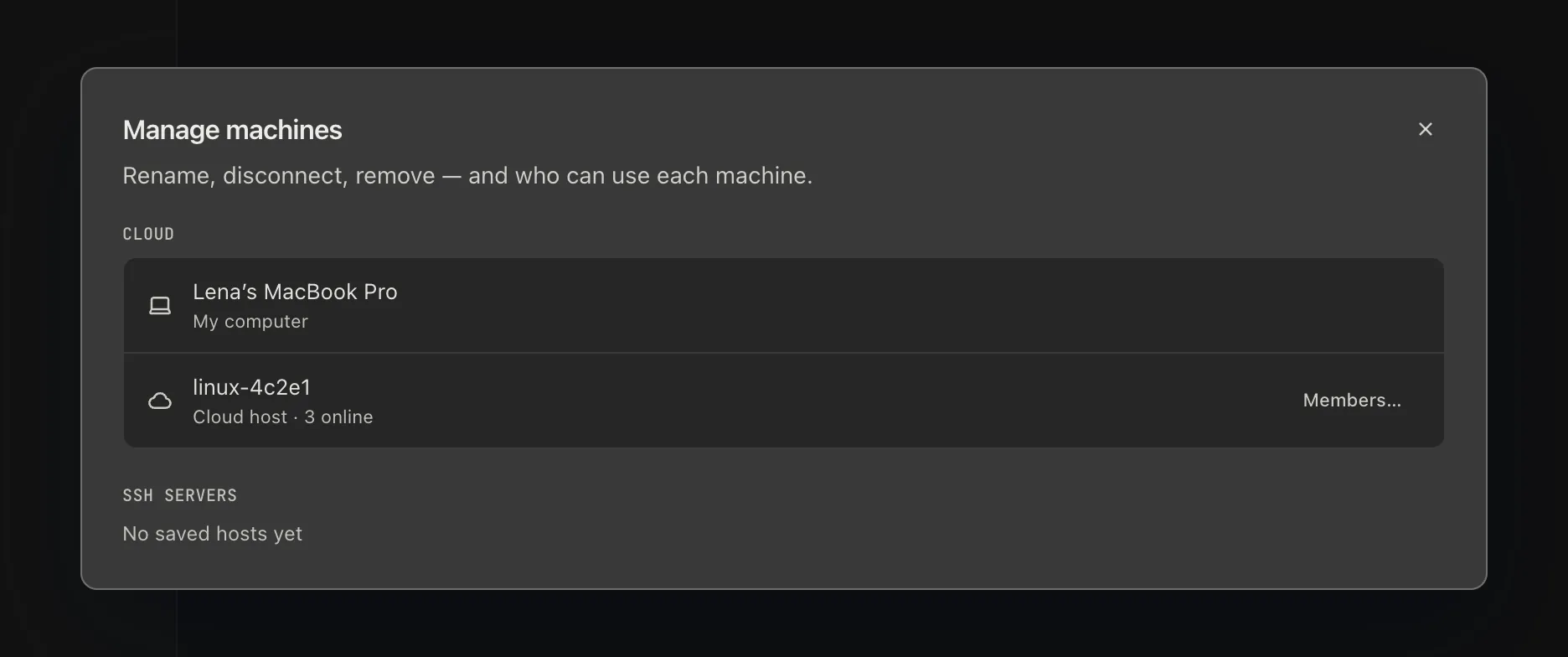
Machine menu › Manage… lists every machine. An offline computer can be removed there; if “Attach to cloud” is still on at that computer, it reappears the next time it comes online. To stop it for good, turn the switch off on the computer itself.
Something wrong or missing on this page? Tell us