

Mirasim Documentation
Cloud hosts
A Linux or Mac machine we run for you. Sessions keep going after you close your laptop, and your team can share it.
What a cloud host is
A cloud host is a machine Mirasim runs for you, with the full Mirasim host on it. Its workspaces, sessions, terminals and files live there, not on your laptop — so a session keeps running when you close the lid, lose the network or switch devices, and whichever device you come back from, you see the same thing.
- Linux cloud host
- 8 cores, 16 GB. Shown as “Standard cloud host (Linux)” in the app.
- Mac cloud host
- A Mac mini M4, 10 cores, 16 GB — for work that needs macOS or Xcode.
- People
- Up to 5 people per host; invitations not yet accepted take a place too. Chapter 11 covers adding them.
- Who pays for each turn
- The person who sent it, on their own platform quota — see “Models and quota” below.
Getting a cloud host
Cloud hosts come with the cloud plans: each tier includes one cloud host, Linux or Mac, plus monthly API usage. A cloud host can also be bought on its own, without API usage. Prices are on the Pricing page (mirasim.ai/pricing) and nowhere else.
What your account holds is its cloud host allowance — how many of each kind you may create. Until it has one, the cloud host option in “Add a machine” says “No cloud host allowance on your account”. Teams that need more members or several hosts: write to support@mirasim.ai.
Create one
- Open the machine menu
The button at the top right of the window that names the machine this window is on. It lists this computer, your cloud hosts and any machine shared with you.
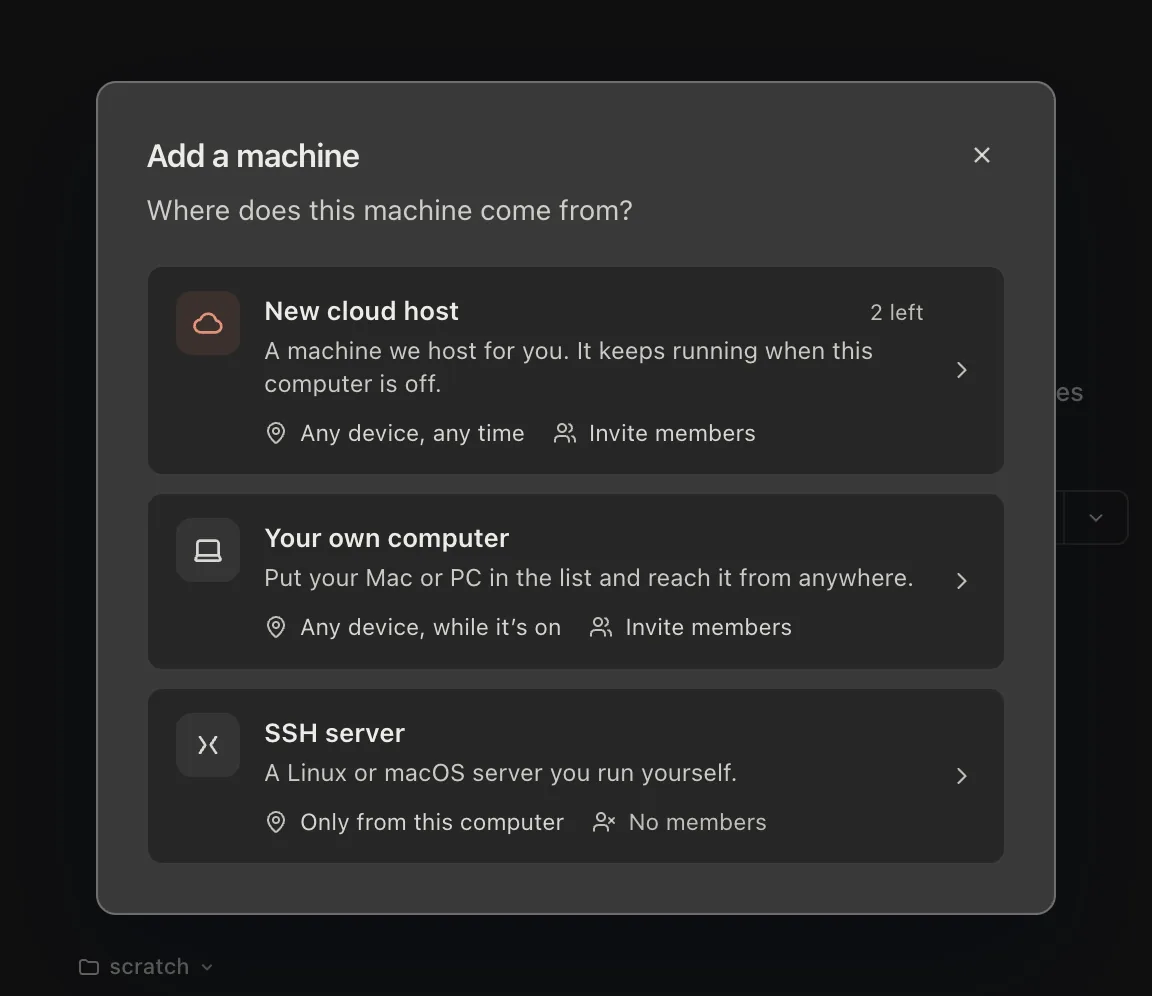
- Add a machine… › New cloud host
“Add a machine” asks where the machine comes from. “New cloud host” is the one we host for you; it shows how many you have left.
- Pick a spec
Standard cloud host (Linux) or Mac cloud host. A spec your account does not include says “Not enabled”. Once it is assigned, the cloud host appears in the machine list.
- Set up your cloud environment
The first time you open it, a short setup walks through Environment, Agents & sign-in and Workspaces. You can skip it and come back from “Cloud setup…” later.
The workspaces step can bring a local workspace across: its files, its sessions and the agents' memory are copied up once. It is a one-off copy — after it, the two sides do not sync, so move code between them with git. Credentials, `~/.ssh` and `~/.aws` are never copied, and repositories that live on GitHub or GitLab are cloned on the cloud host directly, so only your unpushed changes travel.
Opening it
Click a cloud host in the machine menu and it opens in its own window — or that window comes forward if it is already open. The window you clicked from stays where it was: this computer is always this computer, and the two windows sit side by side. The title bar names the space (or says “Cloud”), so you can tell windows apart in Mission Control.
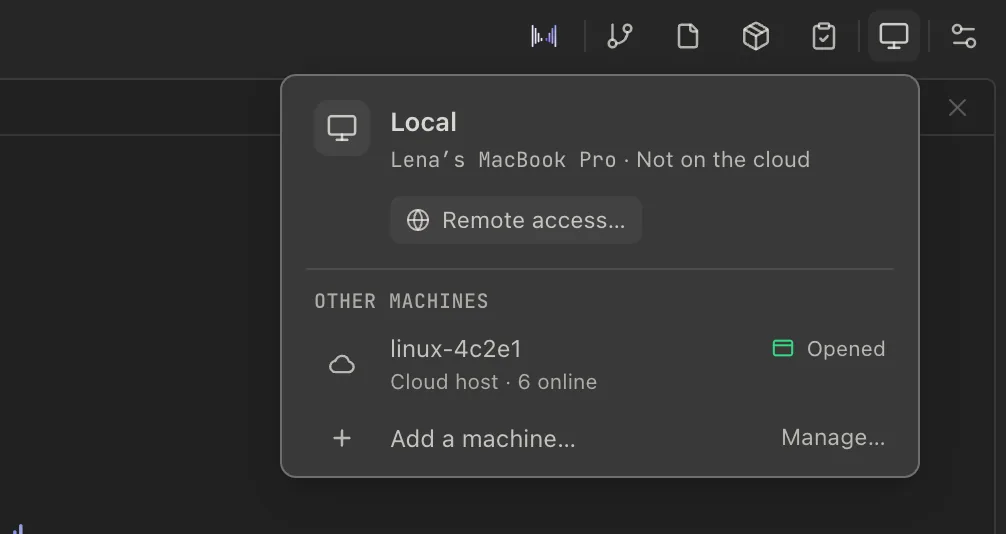
- Opened
- It has a window already; the row also shows who is online and how many sessions are running there.
- Available
- Click to open it in a new window.
- Offline
- The cloud host cannot be reached right now.
If the connection drops, the window reconnects by itself and says when it will retry next; “Reconnect” tries at once. Nothing on the cloud host stops while you are disconnected.
Working on a cloud host
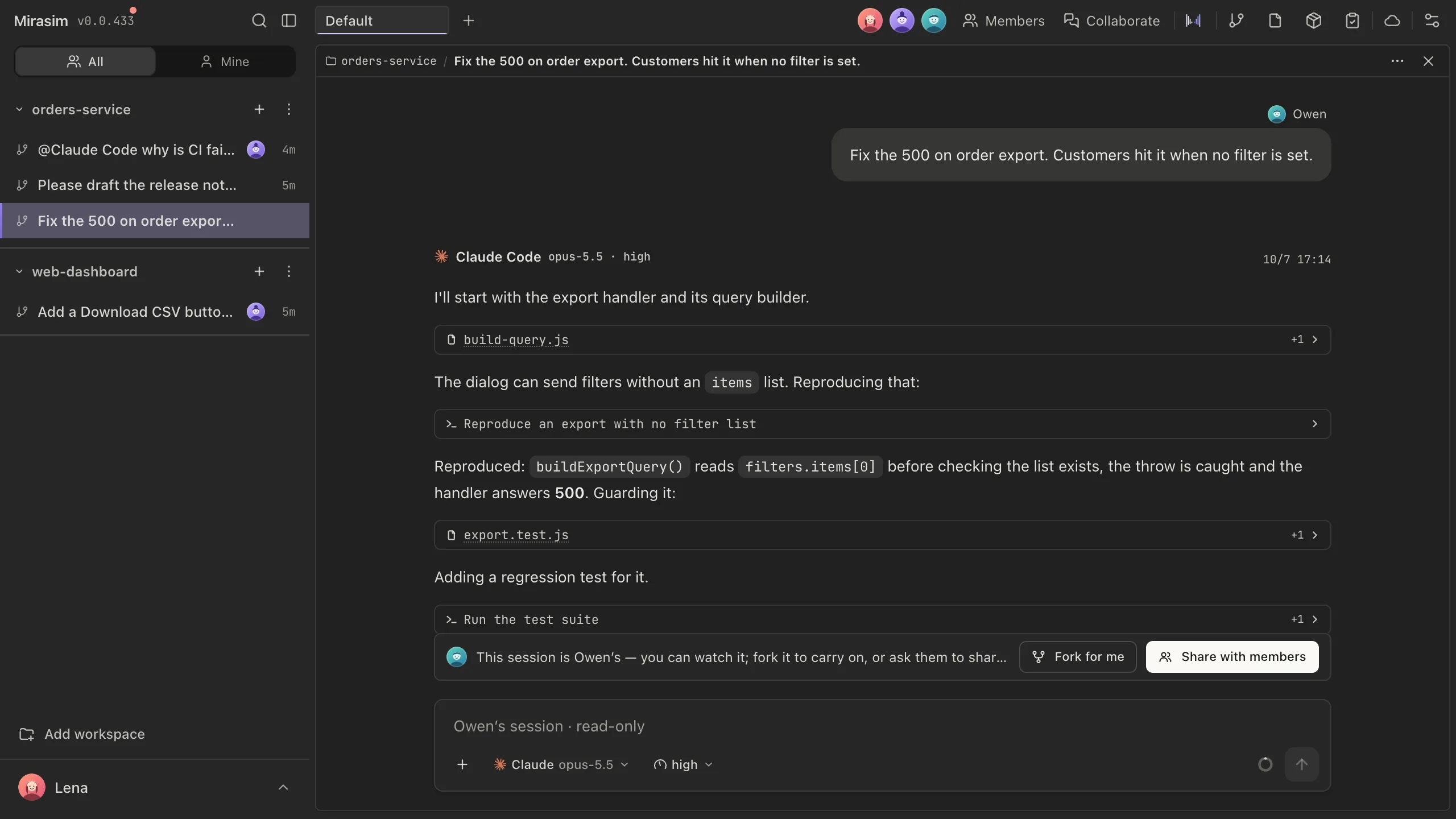
A cloud host window is the same workbench as on your own computer — sessions, panes, files, Git, terminals — only everything runs on the cloud host. A few things are specific to it:
- Coding agents such as Claude Code and Codex are already installed. Project toolchains are yours to install, from the cloud host's terminal.
- Running pages: when an agent or your terminal starts a dev server, its localhost port is listed under “Running pages” in the machine menu — click to open it in the preview. A localhost link in a conversation opens in the preview too.
- Remote desktop: the button of that name at the top of the machine menu shows the cloud host's screen — useful for a browser sign-in that has to happen on the machine itself.
- Your version and the cloud host's are separate. Hovering the version readout in a cloud host window shows both; parts of a new feature that the interface draws appear only once your own app is updated too.
Pushing code as yourself
Settings › Connections › Code hosting connects GitHub and GitLab. After that, agents and terminals on cloud hosts clone, pull and push as you. Each person connects their own account and every git operation runs as whoever started it. Your token never lands on the cloud host — git goes through Mirasim, which adds your credentials on the way out.
Models and quota
On a cloud host, every turn a person sends runs on Mirasim's platform quota and is billed to that person — whoever owns the host. When your quota runs out, it is yours that ran out; nobody else's is spent on your behalf.
The owner and admins can also configure models for the whole host: in the cloud host window, Settings › Models, connect any provider or relay with an API key. Every member's turns can then pick those models and run on those keys rather than their own quota. The Member usage card below it shows who used how much: admins see everyone, members see themselves. Only the owner and admins can change this page.
Where your data is
- Workspaces, sessions and the team's chat live on the cloud host. Mirasim's gateway relays the connection and stores no chat content.
- Your sign-in never lands on the cloud host. It only learns who each connection is, for signatures and permissions.
- When a cloud host is reclaimed, it is wiped before anyone else gets it. Push anything you want to keep to a remote repository.
Something wrong or missing on this page? Tell us