Mirasim Documentation
Mira Bot and assistants
Say what you need, let Mira Bot hand it to the right assistant, and find the work again when it is done.
Mira Bot, assistants and sessions
You can work two ways in Mirasim: open a session and drive an agent yourself, or say what you need and let an assistant do it. This chapter is about the second.
- Assistant
- An agent with a name and a job. Behind every assistant is an agent such as Claude Code, Codex or Pi, on a model; it can do exactly what a session you open can. Assistants are listed under Members.
- Mira Bot
- The space's coordinator, there from the start. It doesn't do the work itself: it knows every assistant's job and what each has on, hands your request to the right ones, and you ask it for progress.
- Session
- Where an agent actually works. Each piece of work an assistant takes on runs as a session of its own, in a workspace, and you can open it any time.
Assistants pass no private notes. Chats, sessions, work items and files all live in the space, and every assistant reads them directly, so the next one picks up where the last left off.
The first time
- Open Mira Bot's chat
It is at the top of Chats. If you chose Start in Sessions in Get started, it is already open beside your first session.
- Say one thing you need
Plain words are fine. Its welcome offers a few to start from under Try handing me one of these; tapping one only fills the box, and nothing runs or costs credit until you send.
- Watch it come back
Mira Bot hands the work to an assistant and says so in the chat. When it is done, the result comes back to where you asked. Meanwhile it is under Assistant work items on the right (see below).
看看这个工作区里有什么,写一份说明文档给我
每天早上 9 点,把昨天这个工作区的改动汇总成几句话发给我
帮我找到这个报错的原因,修好后跑一遍测试:<贴上报错>Add an assistant
At first the space has only Mira Bot. Give it a team: in Members, choose New assistant, or pick ready-made ones from Assistant market.
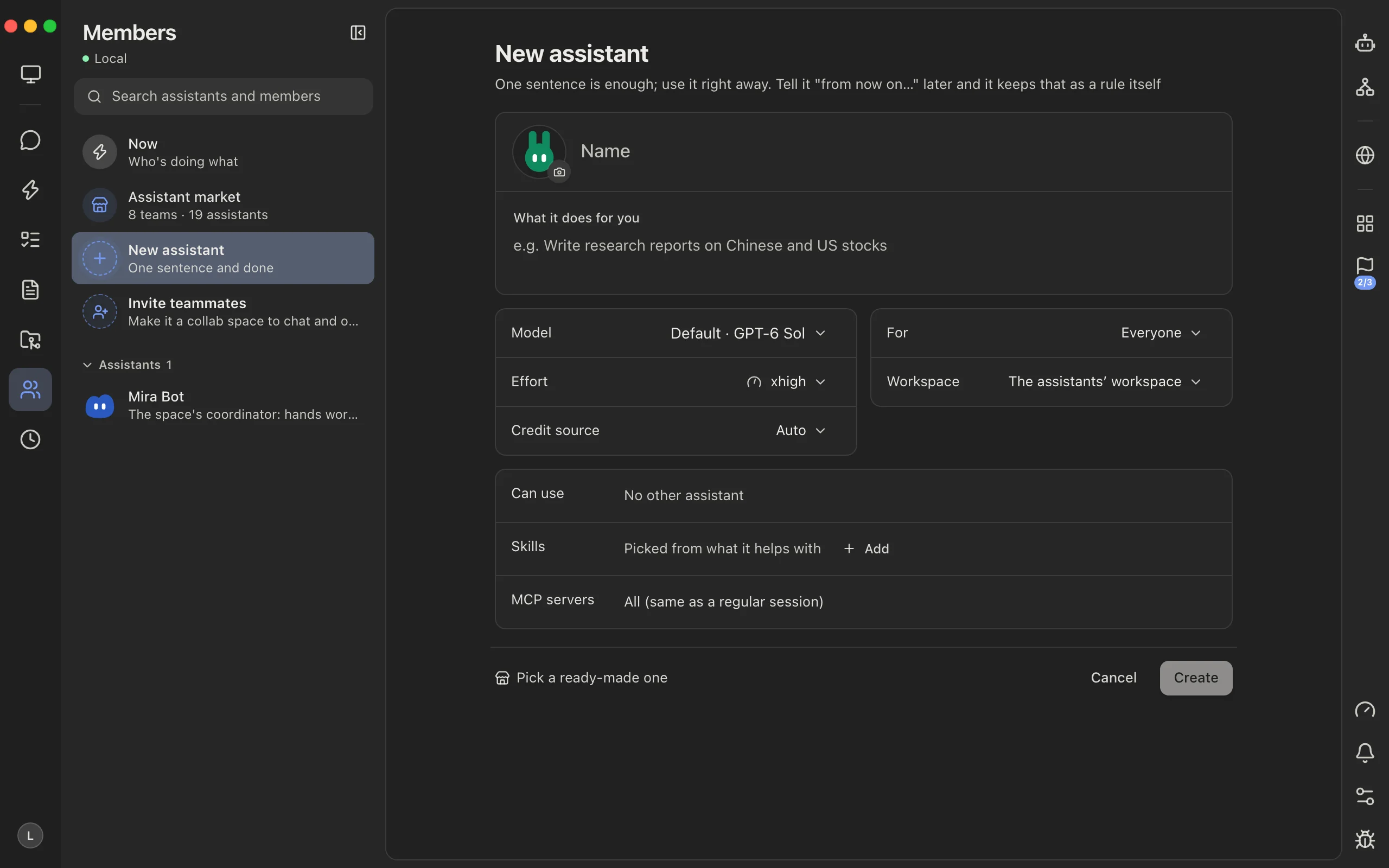
- What it does for you
- One sentence, such as “Only edit pages under web/, and run lint when you are done.” Mira Bot assigns work by it, and it goes with every job. Keep it short: the longer and more complicated it is, the more an assistant drifts. Later, tell the assistant “from now on…” and it keeps that as a rule itself.
- Name and avatar
- What you @ it by in a chat.
- Model, effort
- Which agent and model run its sessions (chapter 16). Default follows the space's default agent.
- Credit source, who it is for, workspace
- Whose credit it spends, who can call it, and which folder its work runs in when a request names none.
- Can call, skills, MCP servers
- Which other assistants it may hand a part to, and its tools. Skills are picked from what it helps with unless you choose; MCP servers default to the same as a regular session (chapter 18).
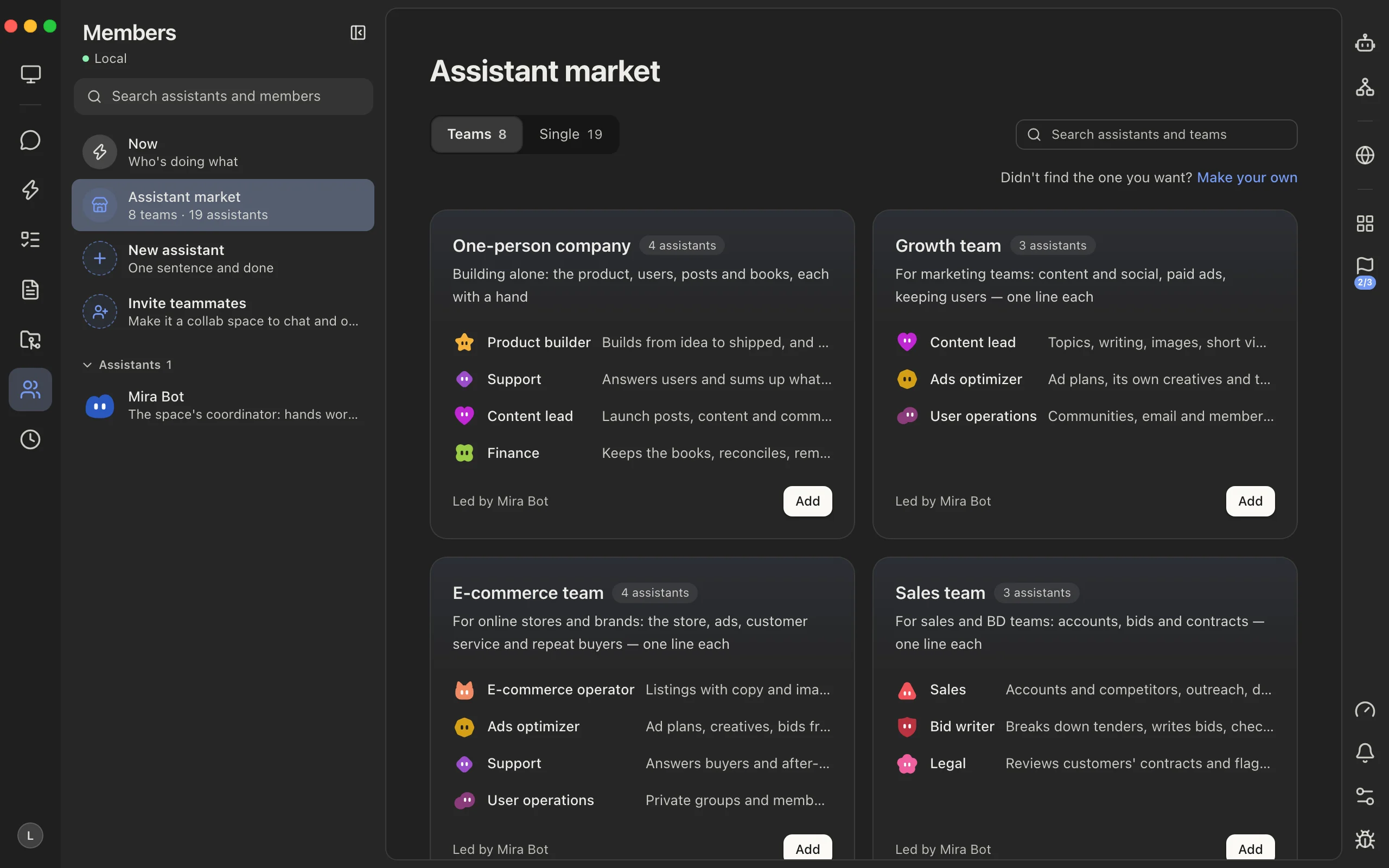
Assistant market has teams (several assistants for one kind of work, led by Mira Bot) and single assistants. Adding one puts it under Members; change its model and effort right there, or open it for every setting.
Ways to hand off work
| Do this | What happens | Good for |
|---|---|---|
| Tell Mira Bot, in its chat or by @-ing it in a channel | It splits the request and hands each part to the assistant that fits; the parts run in parallel, each in its own session. | Not sure whom to ask; work with several parts |
| DM an assistant, or @ it in a channel | That assistant takes it on itself. | You know exactly who should do it |
| Open a work item and hand it off | Choose Hand to Mira Bot, or under Do it myself pick an assistant or start a session yourself; the work stays tied to the item and its result comes back there. | Work you are already tracking as an item |
| Ask for it on a schedule | Say “every morning at 9…” and it sets up an automation that starts a session on time (chapter 19). | Daily reports, weekly summaries |
Where handed-off work goes
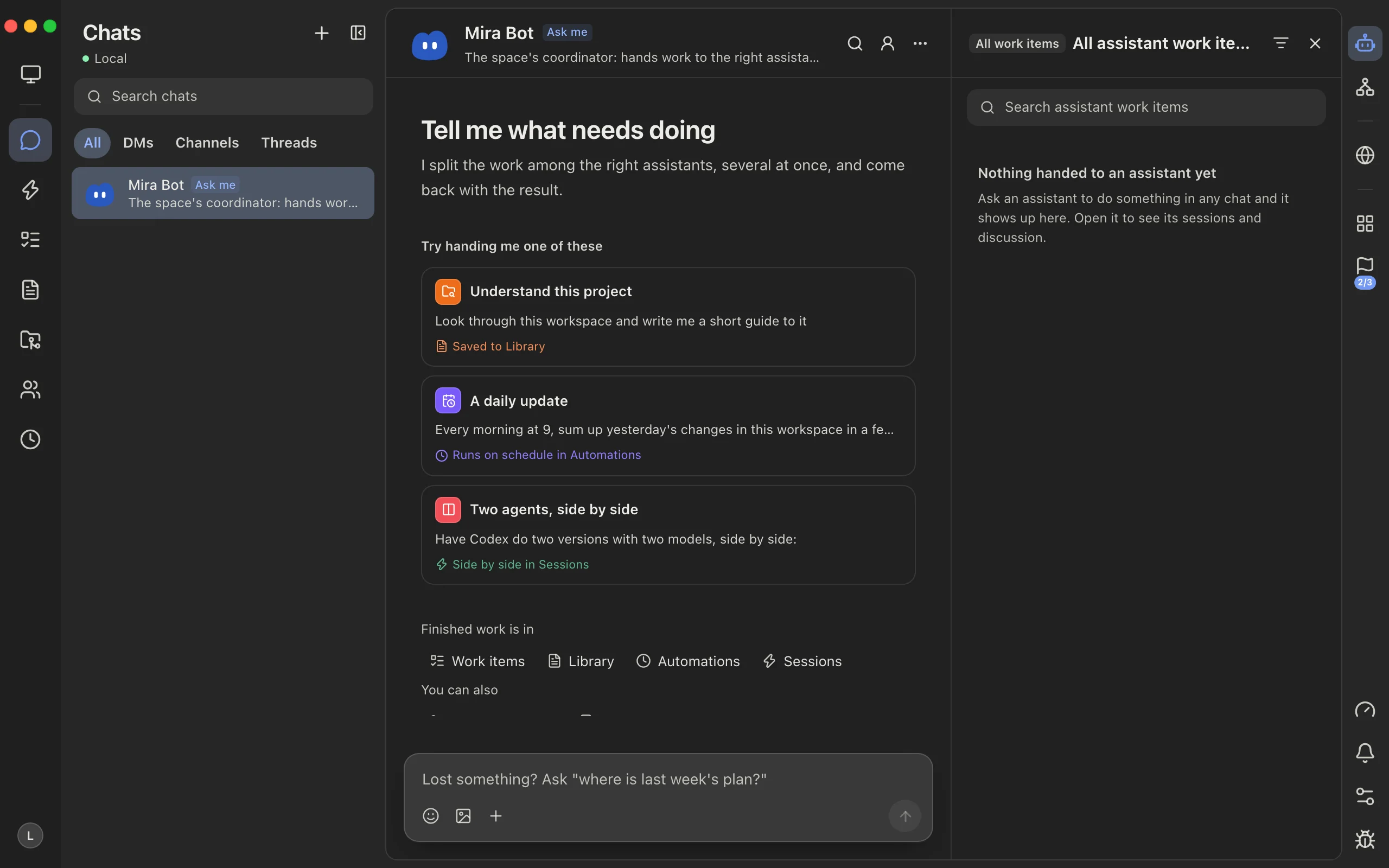
- In the chat: the assistant says in a sentence whom it handed the work to. Under that, one line per assistant working on it — what it is doing now, asking you, done or not finished — then N replies or Open the work item.
- On the right bar: Assistant work items lists everything you have handed to assistants, grouped Waiting on you, Running and Has results, with a search box and a filter by assistant. It stays as you move between chats and places; the robot icon at the top of the right bar opens and closes it.
- Open one and you get its discussion: what you asked, the assistant's rounds and its results. Keep talking there, and your message goes straight to the session doing the work.
- Each one is also a work item under Work items on the left rail, so it shows up next to the rest of the team's work (chapter 13).
- When a job is over, archive it: tick it in the list, or choose Archive in its detail. Archiving puts away the work item and its sessions together, and you can undo it.
Open the session underneath
Every assistant's work is a real session. Under Sessions on the left rail they are listed with your own, and a session an assistant runs carries a small Assistant work item tag after its title that takes you back to the item.
Open one to watch every step, talk to the agent directly, or switch its model and effort — like any session (chapter 06). That is the way down when you want more control than a chat gives.
In a team space
- Anyone in a channel can @ an assistant or Mira Bot; each piece of work gets its own thread, and the result comes back there.
- The work runs as the person who asked: their credit pays, and only they answer the assistant's questions.
- Viewers can see the chats, sessions and files; in an open space they can @ assistants too, but they can't start or steer sessions (chapter 13).
Chapter 13 · Members and collaboration › Collaborate: channels, DMs and threads → Working together in a team space, channels and threads.
On the phone
The phone app opens on Chats. DM Mira Bot or @ an assistant just as on the computer; the work it takes on runs on your computer or team space, not on the phone (chapter 21).
Coming from the classic interface
The classic interface puts sessions first: several side by side in one window. The new one, the default since November, puts people and assistants first and keeps sessions one level down. Nothing was taken away; most of it moved.
| In the classic interface | In the new interface |
|---|---|
| The session grid, groups, ⌘T | Sessions on the left rail: the same grid and groups |
| The sidebar: waiting on you, pinned, workspaces | The list beside the grid under Sessions |
| The channels window | Chats |
| Follow-ups (the tab, the bell, the count on the toolbar) | Assistant work items on the right bar |
| Manage assistants | Members › New assistant, Assistant market |
| The file, Git and terminal tools | Workspaces, or the workspace tile beside a session (⇧⌘E) |
| Scheduled tasks | Automations |
| Work items | Work items (unchanged) |
- Hand one thing to Mira Bot
Something you would have opened a session for.
- Follow it on the right bar
Assistant work items shows where it is; open it to talk to it.
- Drop down to the session when you need to
Its session is under Sessions, as it always was.
Questions
- I don't see Mira Bot in the classic interface
- In the classic interface, chat — and with it Mira Bot and assistants — only exists in a team space. On a computer that isn't a collab space, switch to the new interface, which has its own chat for you, or make the computer a collab space (chapter 14).
- Where did the work I handed off go?
- Assistant work items on the right bar, and Work items on the left rail. Its session is under Sessions.
- Where are my sessions?
- Under Sessions on the left rail, with the same grid, groups and lists as before. A computer reached over SSH, or one you paired to from another, has no chat at all, so there the window opens straight on Sessions.
Something wrong or missing on this page? Tell us